Access Control and Race Kit Pickup

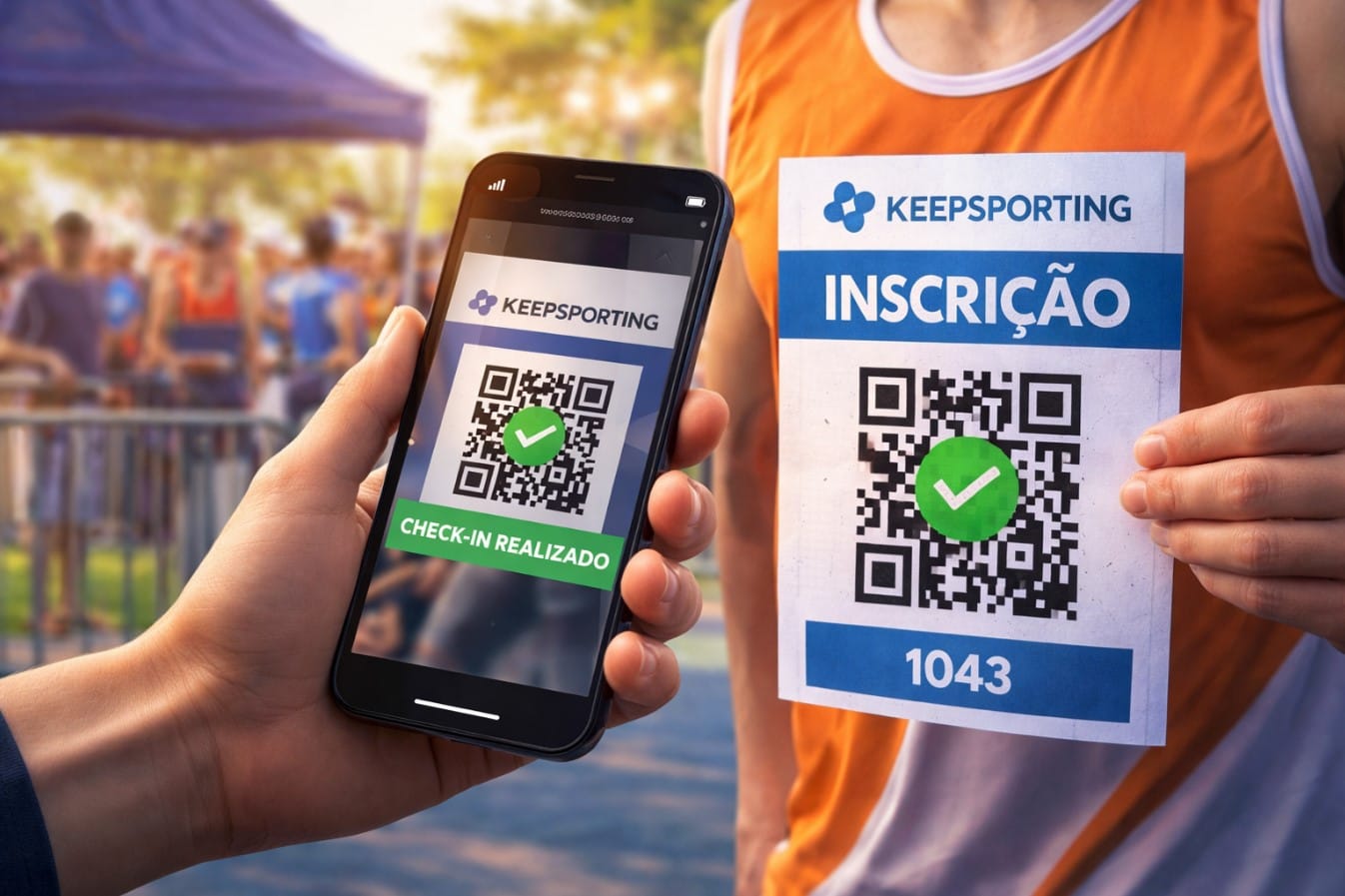
Check-in agility is a decisive factor for operational success and the overall athlete experience. Thanks to Keepsporting’s rapid QR Code registration scanning, entries can be validated in seconds, reducing queues and eliminating manual errors. This technology ensures greater control, security, and real-time monitoring, elevating your event's organizational standards and professionalism.
Why manage entry control through Keepsporting?
DemonstrationAvoid Queues at Check-in
Scanning the QR Code on registrations makes check-in significantly faster: once scanned, the Keepsporting system automatically validates the athlete and records the kit pickup in real time, eliminating manual processes and reducing errors.
Security
Using QR Code scanning at check-in also strengthens event security. Each registration features a unique code that, once scanned via Keepsporting, is automatically validated, preventing reuse or fraudulent attempts.
Monitoring
Real-time monitoring provides organizers with total visibility of the event as it unfolds. For every QR Code scanned on Keepsporting, the system automatically updates the participant list, showing exactly who has already checked in for kit pickup and who is still pending.
What’s New with the Athlete’s Ticket?
How to View the Athlete's QR Code
Registration completed by the athlete
There are two ways the athlete can present the QR Code to perform the check-in and/or collect the race kit at the event.
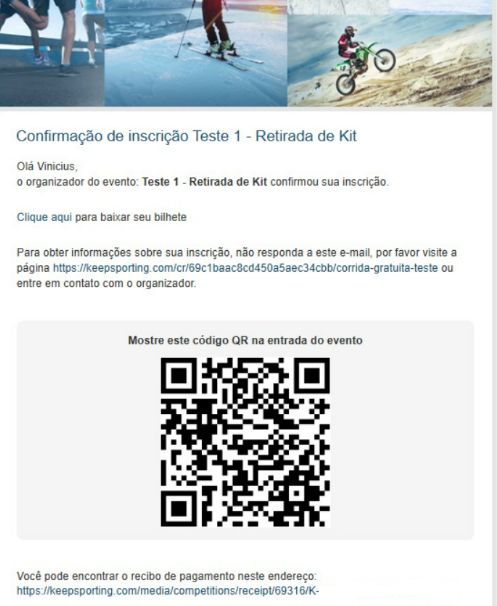
- Via the automatic email the athlete receives:
After the athlete has completed their registration and payment is confirmed, they will receive an email containing the QR Code.
The athlete should save this email to present the QR Code at the event, facilitating a smoother check-in and kit pickup process.
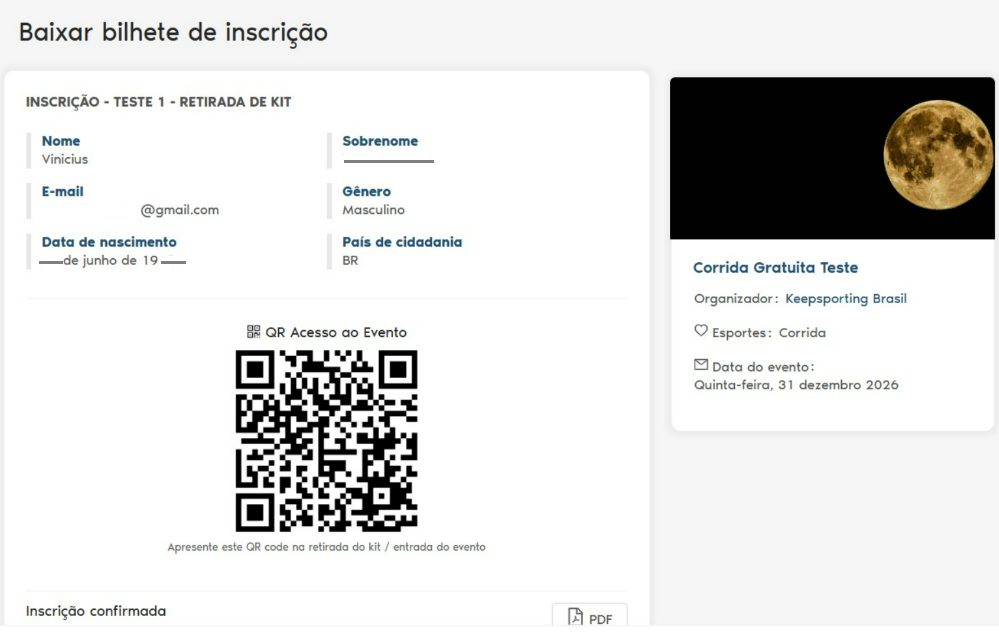
- Via the registration ticket, accessible both through the link in the confirmation email and from the athlete's private area by logging into the website.
How to Perform Check-ins via the Keepsporting Platform
- Access the EMP [Registration Manager] on the platform.
- Within the sub-event (stage), click on 'General Data'.
- Under the date and time settings, access 'Access Management' as shown in the image below.
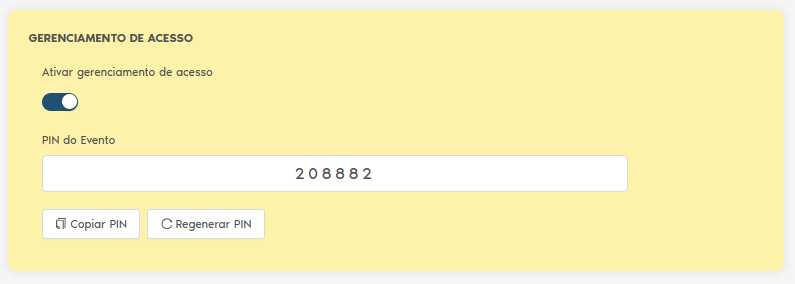
- Click on 'Activate Access Management'.
- An Event PIN will be automatically created; copy or write down this PIN, as it will be required to perform athlete check-ins for the event.
- Important: Do not share this PIN with any athlete or anyone who is not authorized to perform check-ins.
How to Scan the Athlete's QR Code
- The staff member in possession of the PIN must open the camera on their mobile device and frame the QR Code.
- They will be redirected to the internet browser, where the PIN will be requested (this is only required the first time on the device used for scanning).
- Enter the PIN on the screen as shown in the image below.
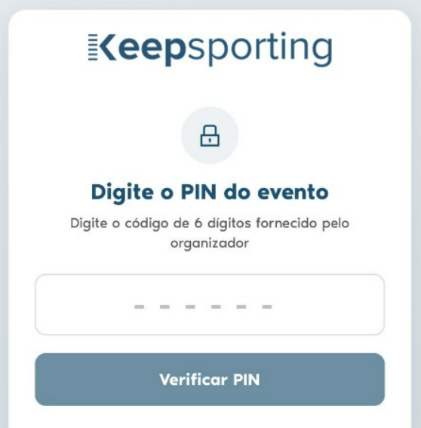
- After entering the PIN (which only needs to be done once), the following screen will appear, displaying the athlete's name and the event name, as shown in the image below.
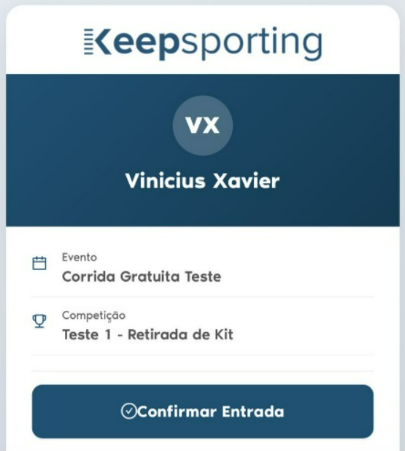
- After clicking the 'Confirm Entry' button, the image below will appear showing that the entry was successfully confirmed, followed by the specific date and time of the confirmation.
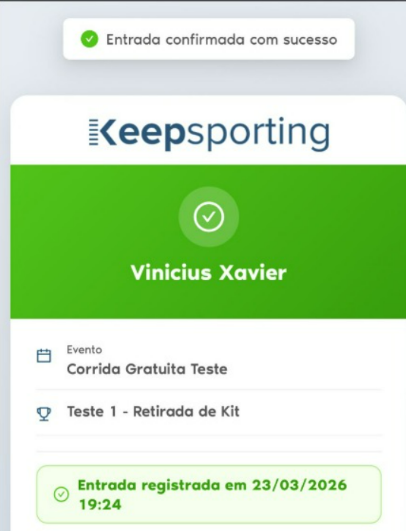
Check-in via Computer
- Check-ins can also be performed using a computer equipped with a QR Code scanner.
How to view Check-in confirmation in the EMP
- Click on the desired sub-event (stage).
- Click on 'Registrants' in the left-hand side menu.
There are 3 ways to view the check-in status:
- 1. Registrants Menu
1.1 In the main Registrants screen, you can view the status in the list through the 'Entry' column.
1.2 When the icon is green, the registration has been confirmed via check-in; when it is red with an 'X', the check-in has not yet been performed.
1.3 You can also use the 'Entry' filter button, selecting 'Yes' or 'No' to display only those who have or have not completed the check-in.
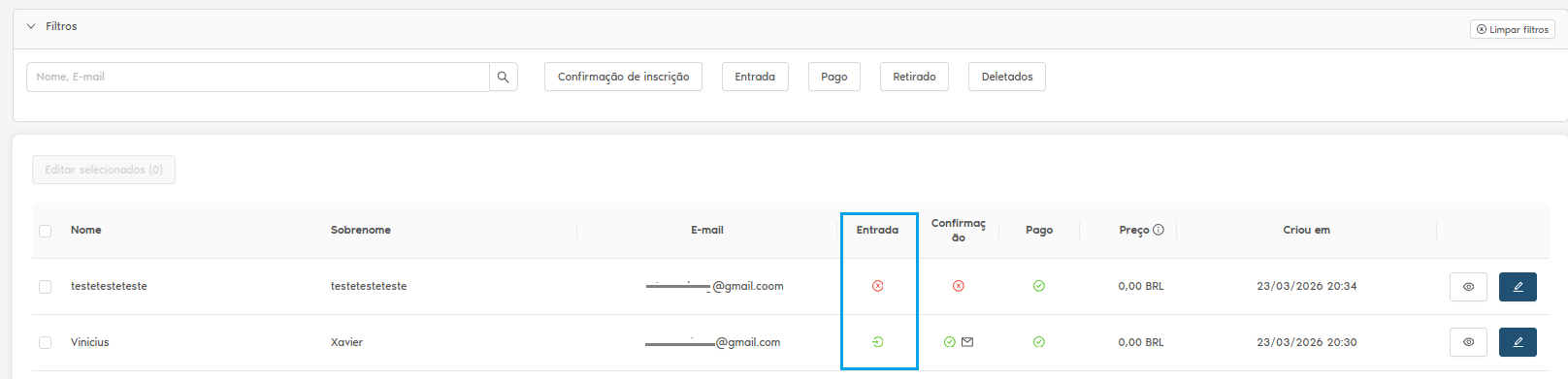
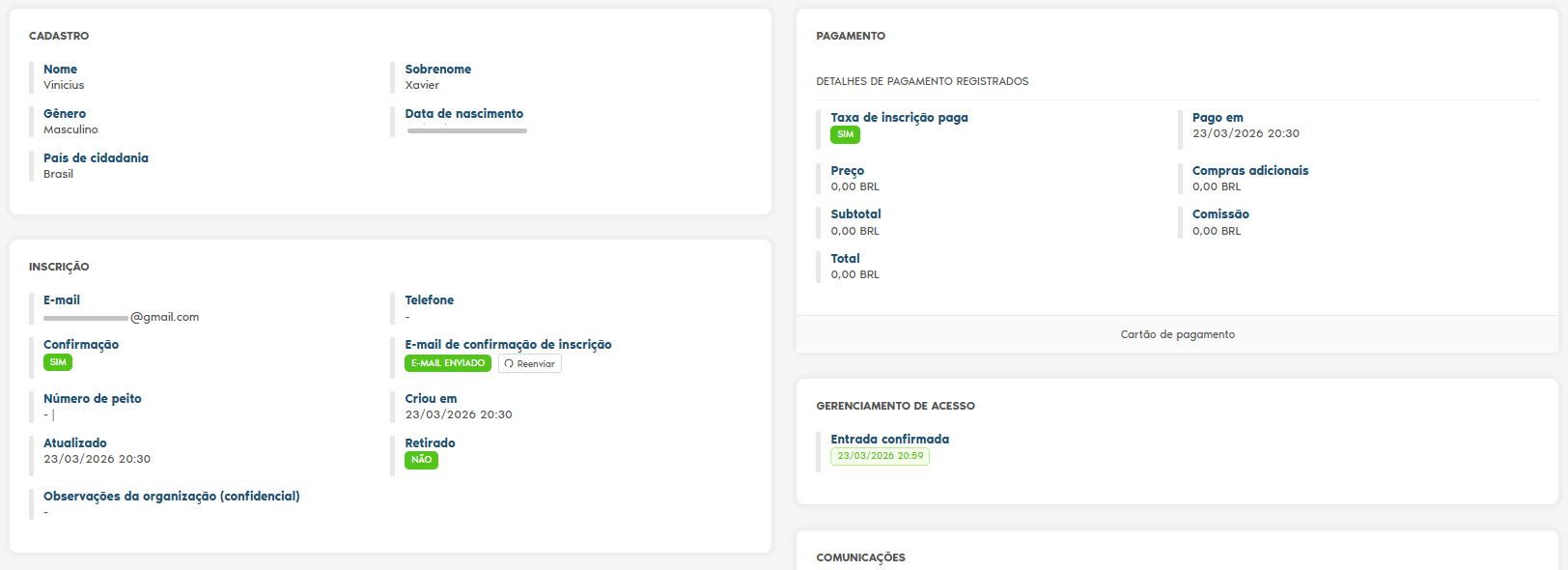
2. Within the athlete's profile details
2.1 Within the athlete's specific details, you can find the 'ACCESS MANAGEMENT' option showing the confirmed entry, followed by the exact date and time.
- 3. Registrants Sheet (Excel/CSV)
3.1 In the 'Entry' column, you can view the specific date and time the check-in was performed.

Conclusion
In a scenario where the athlete's experience is increasingly valued, investing in technology to optimize processes is no longer just a differentiator—it has become essential. Thanks to the use of QR Codes integrated with Keepsporting, check-in becomes fast, secure, and fully traceable, ensuring greater fluidity during kit pickup and access control.
Beyond reducing queues and eliminating manual errors, the system provides the organizer with a complete, real-time overview of everything happening during the event: from who has already checked in to who remains pending. This enables more strategic, organized, and professional management.
By adopting access management via QR Codes and PINs, you not only improve operations but also elevate the standard of your event, conveying trust, innovation, and attention to every detail. After all, a well-organized event starts behind the scenes, and the check-in represents the athlete's first major contact with that experience.