Configure Registration and Payment Reception
INTRODUCTION
Welcome to another Keepsporting platform tutorial. The goal of this reading is to show you how to configure the platform to receive payments through registrations.
RECOMMENDATION
Always use a platform to make registration purchases available for your event. This will save you time, allow you to measure your data, understand your audience, and give you more time to plan your event operationally.
OBJECTIVE
To configure the management of registrations and payments so that the event can have the functionalities of boleto, Pix, card, installment card, or cash.
HOW TO ACCESS
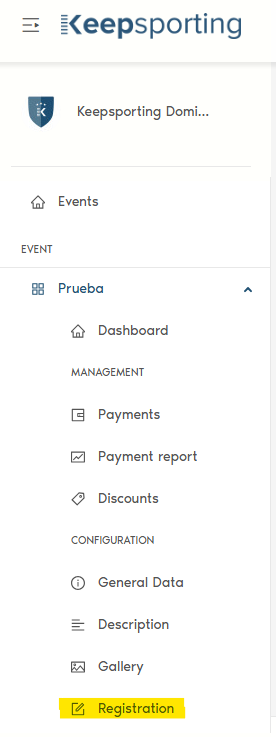
From your event's main menu, click the Registrations button in the side menu on the bottom left of the page.
We’ll explain each field for you to understand.
CONFIGURING THE SERVICE FEE
The site's standard fee is already configured and cannot be changed.
In the Commissions field, you have two options:
- Apply the service fee to the athlete (it will be added to the registration fee). This means if your registration is R60.00, the fee for the athlete (the site fee) will be displayed during the registration: R60.00 + R6.00 (fee). The athlete will pay a total of R66.00, and the organizer will receive a net R$66.00.
- Apply the service fee to the organizer (to be included in the registration price). For example, if your registration is R60.00, you will configure the price already including the site′s fee. It will be R60.00, and the system will automatically deduct the R6.00 separately from each registration and show it in the site′s reports. The athlete will pay a total of R60.00, and the organizer will receive a net R$54.00.
CONFIGURING THE PAYMENT TYPE THAT WILL BE AVAILABLE TO THE ATHLETE
For the “Boleto” item, if you wish to enable it, check the box indicated by the arrow. Then, check the field that says “number of days before the date on which this payment method will not be available.”
What does this mean? (It's very important).
For example, all payments via boleto take 48 to 72 hours to clear at the bank and be reported to the system and updated. Therefore, it’s important to define a minimum of 3 days before the registration closing date. This will give enough time for all boleto payments to clear in the system so that you can see who has actually made the payment.
For better organization, since you will need to prepare the list of registrants to separate kits and send the list to timing (depending on the type of event), it’s important to set aside an additional 2 days. By default, we recommend keeping this field at 5 to 6 days. The system will automatically keep only the credit card payment option available in the last 5 or 6 days before registrations close.
However, this will also depend heavily on the registration closing date and the event date. To plan well, it’s important to pay close attention to the registration closing date so you have enough time to get everything ready for the event.
For the “Credit Card” item, if you wish to enable it, check the box and this payment option will be active until the registration closing date.
ORGANIZATION DATA
- Provide the organization's name;
- Legal representative's name;
- Organization's address;
Afterward, click Generate contract. You will see the site's standard contract with Keepsporting's details and the information you provided for the organization.
Then, you can read and approve the contract.
WANT TO SEE WHAT OUR CLIENTS' EVENTS ARE LIKE?
Follow our social networks to keep up with everything happening in the sports world!
Facebook: Click here
Instagram: Click here
YouTube Channel: Click here
Linkedin: Click here
Twitter: Click here
See you soon! ;-)