How to edit/modify registrant data on Keepsporting

Dear organizer,
It can happen that an athlete makes mistakes during registration. No problem! In this brief guide, we explain step by step how to correct the data entered directly from your organizer area.
1. Access the 'Registrants' section of your sub-event
From your event's control panel (dashboard), select the sub-event of interest and click on the 'Registrants' (Subscribed athletes) section.
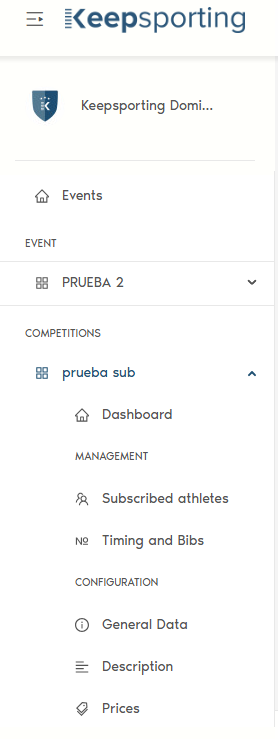
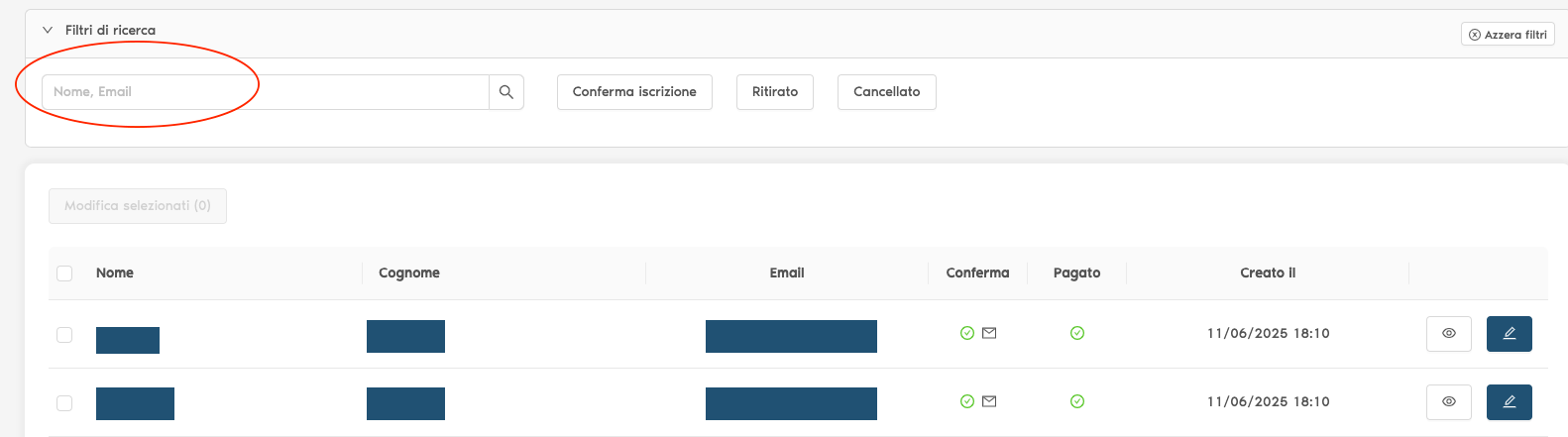
2. Search for the athlete
Use the search field at the top to type the first and last name of the athlete whose data you want to modify.
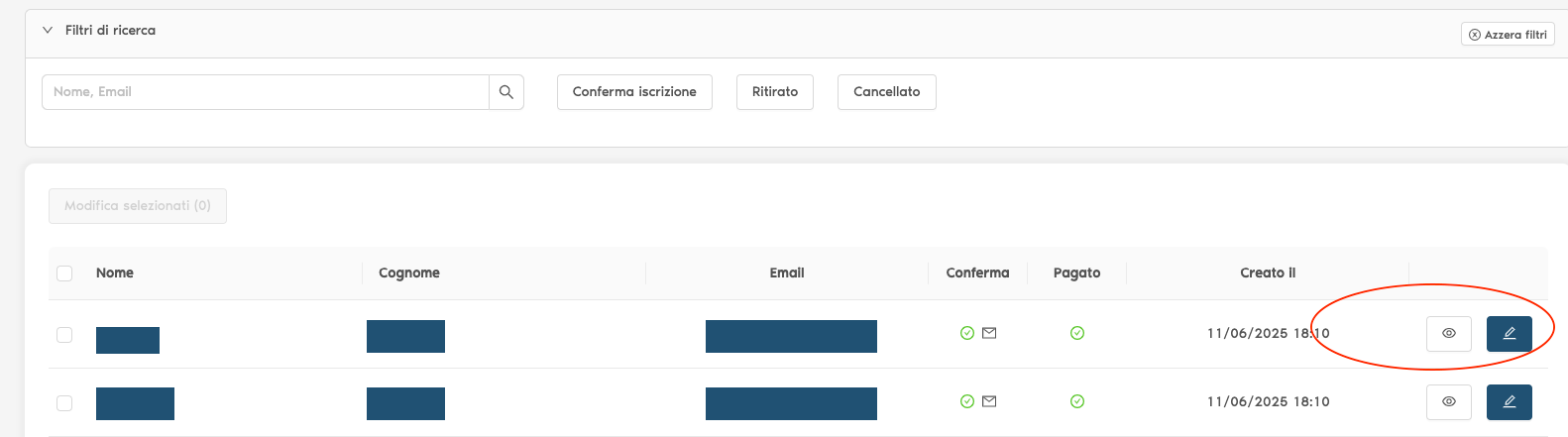
3. Enter the athlete's record
Find the registrant in the list and click on the eye-shaped icon, located on the right, to open their record.
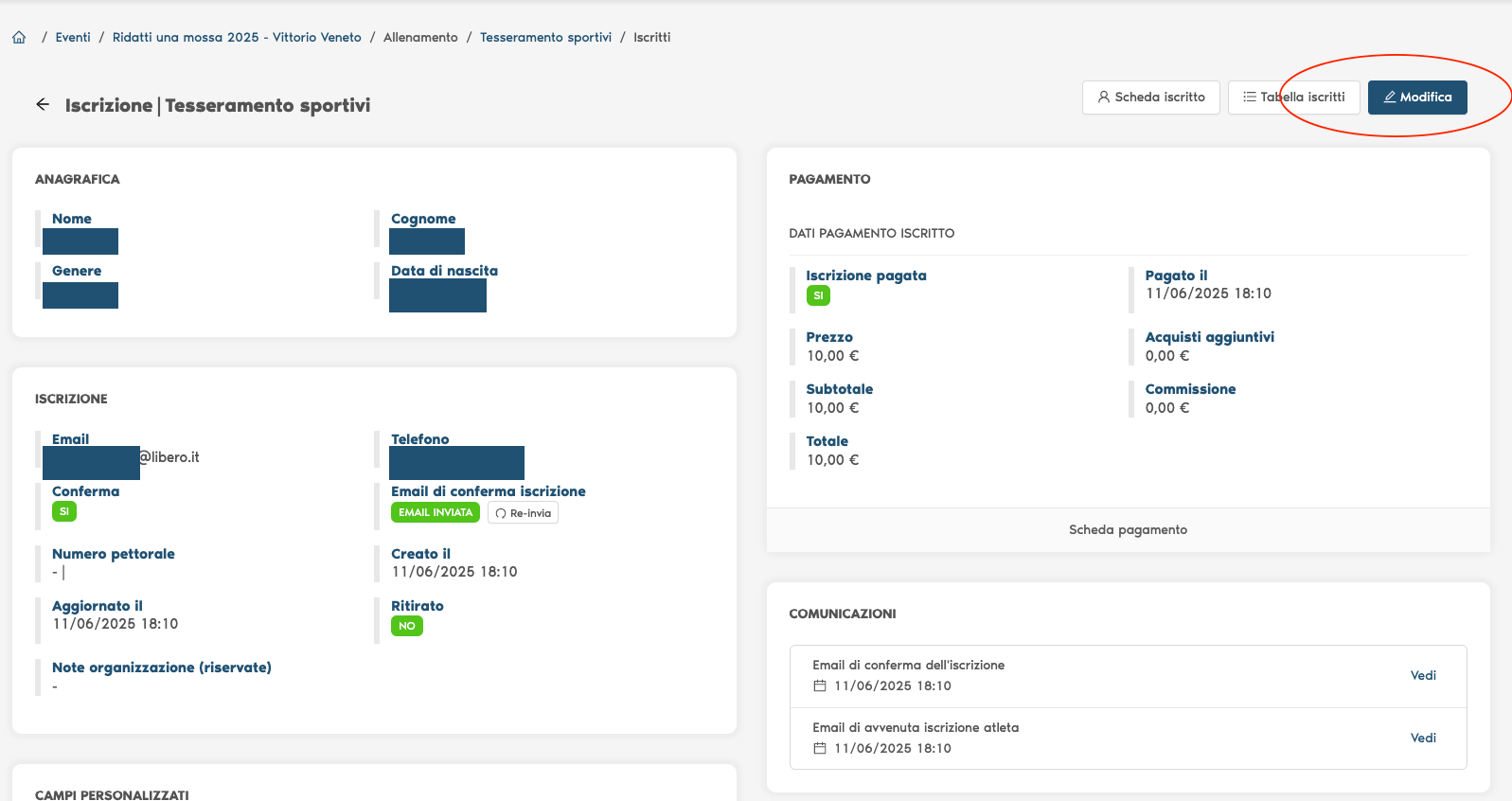
4. Modify the data
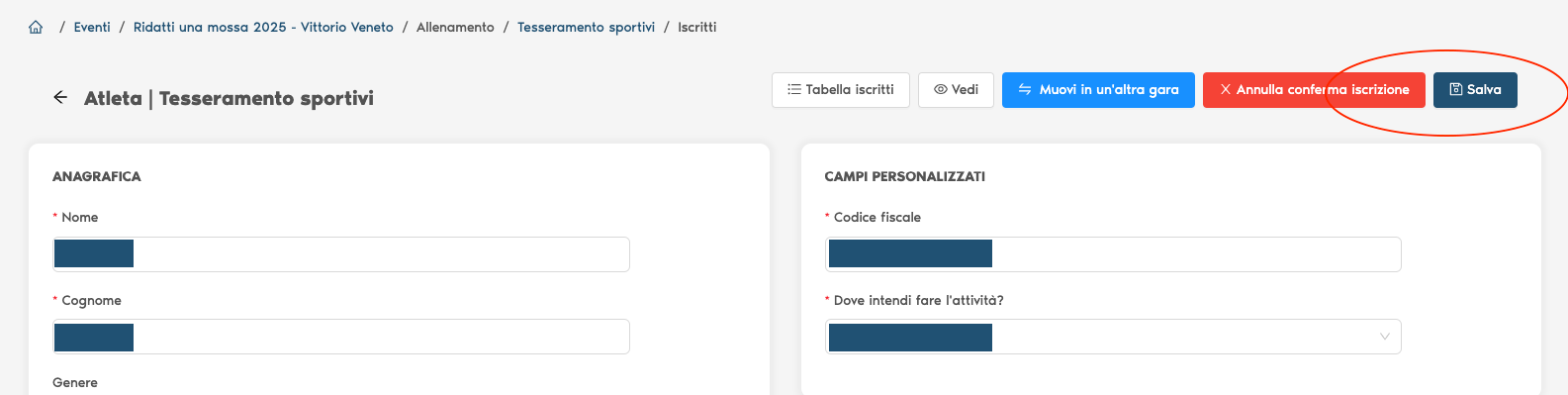
Inside the athlete's record, click on the 'Modify' (Modifica) button to access the editable fields.
5. Save the changes
Make the necessary modifications and remember to click on 'Save' (Salva) to confirm the changes.
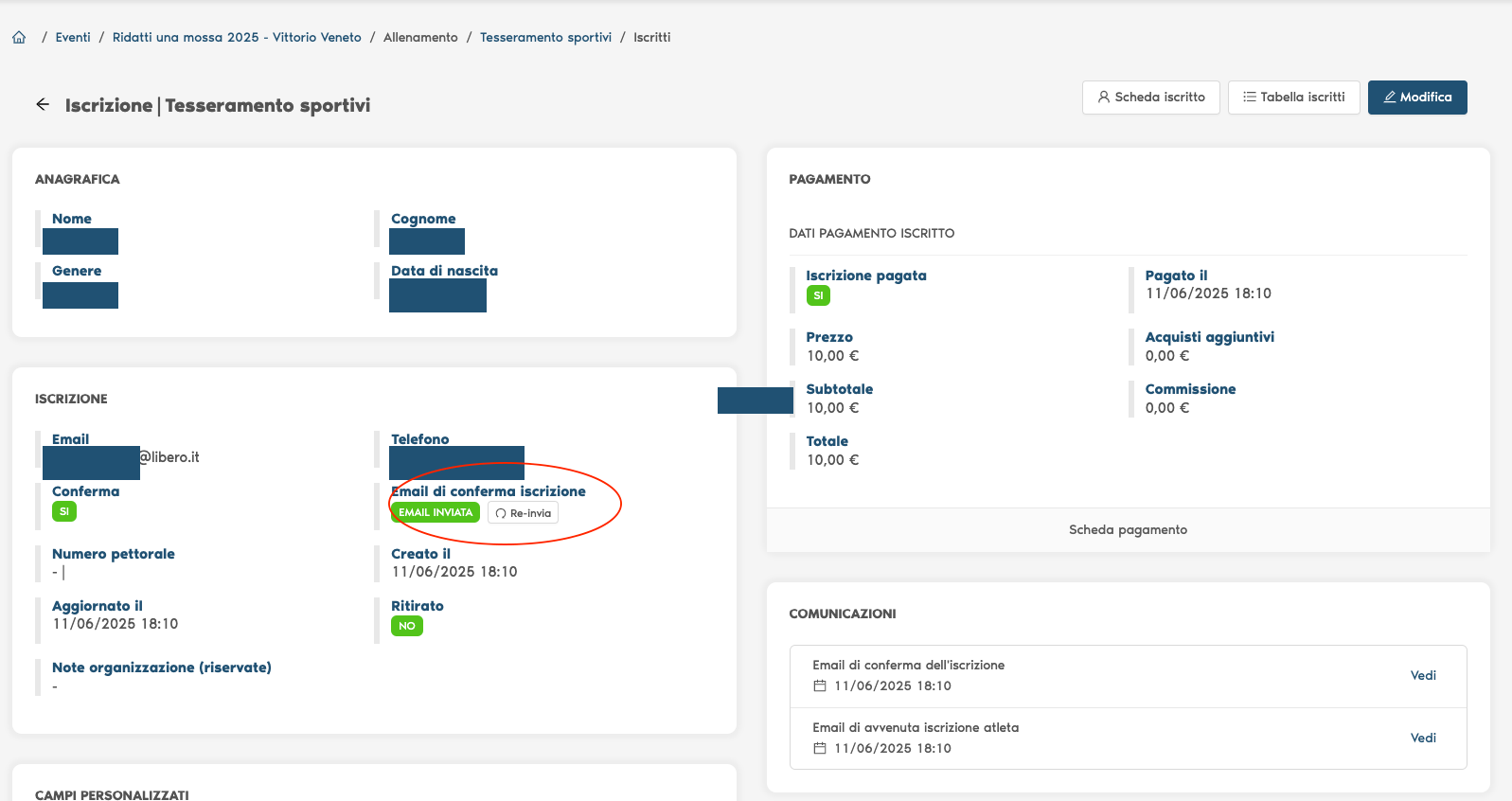
6. Resend the registration confirmation
If necessary, you can also resend the updated registration to the athlete using the specific button present in the record.
We hope this guide has been useful to you for managing registrations on Keepsporting in the best possible way.
Having control over athlete data is essential to ensure an organized and professional experience, both for you and for them.
For any questions or needs, our support team is always available.
Good work and good sport!